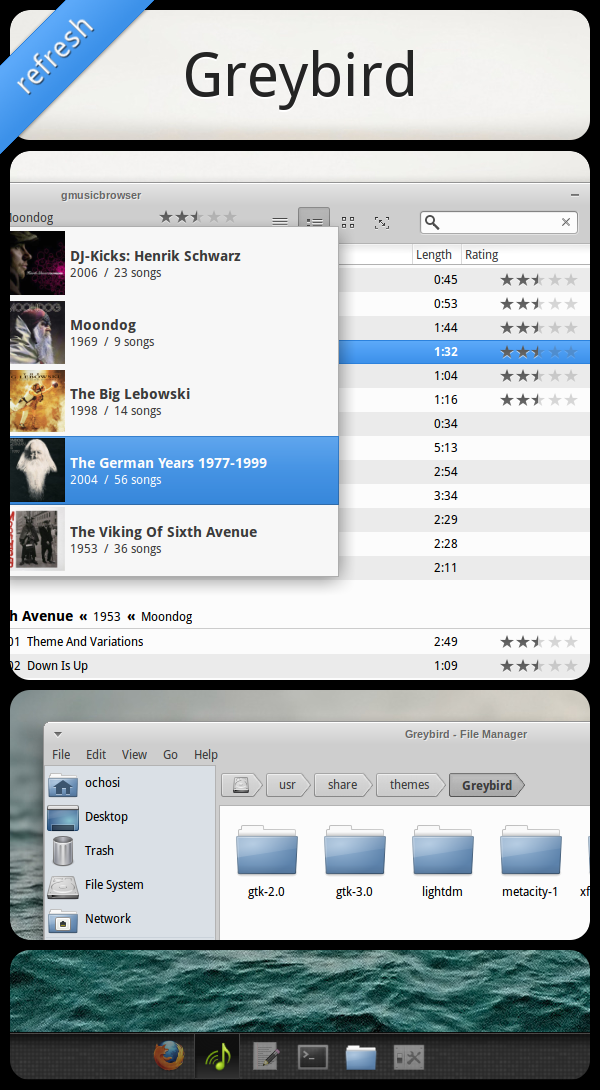
While we’ve been using “Greybird” as our default theme for a few releases now, I’ve continuously worked on it. The goal was not only to ensure the quality of the theme in terms of a flawless Xfce4 and Gtk3 performance and extras like supporting Unity or Compiz, but also to visually keep it up-to-date.
More contrast
After having had a tendency to soften colors and contrasts, I’ve decided to take a (bold?) step and counter this tendency. This is why the changes for the upcoming Quantal release might seem more drastic then between the releases before. After playing with it for a while, I realized that going this direction half-way wouldn’t work well, so while I’m aware that there might be quite a bit of whining (partly because people may miss the “old Greybird”, partly because change always provokes whining) I really hope that many and most of you will fall in love with the changes the way I did while working on it.
Built around Gtk2
Since the Xfce developer community decided a while ago not to port their (and consequently: our) desktop to Gtk3 in the next release (4.12) and instead to postpone that until performance and memory issues with Gtk3 would be fixed (keeping my fingers crossed), I built the refresh of Greybird around Gtk2. As this will be the main platform for our users’ desktop experience, I’ll try my best to port all the changes to Gtk3 as perfectly as possible, so that hopefully no-one will notice whether an app is Gtk2 or Gtk3 (because I firmly believe that users shouldn’t have to care about things like that).
So, without much further ado and blathering, here goes a representational compilation for our Greybird refresh.
Screenshot compilation of Greybird’s refresh
Testing
If any of you feel like testing this, feel free to download the tarball @github or git-clone the repository to easily stay up to date.
Feedback
Constructive feedback – either via the Mailing list or on IRC – is always appreciated!
The author of this post is Simon Steinbeiß, who is the Xubuntu Artwork Lead. In addition to Xubuntu, he works extensively on the Shimmer Project and the Xfce Design SIG.
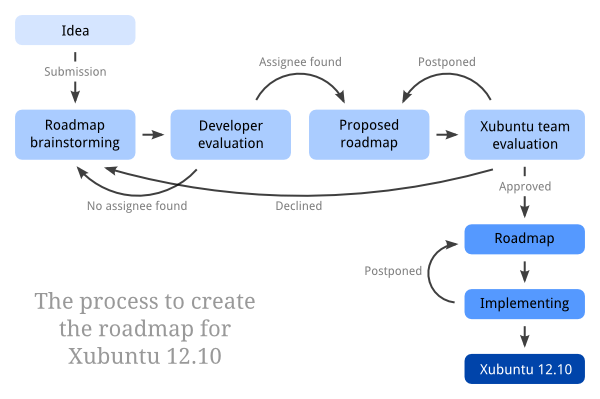
It is the time to submit your ideas on how to make Xubuntu better: the brainstorming phase for the 12.10 roadmap is on now! It is also a good time to start contributing, since every item needs an assignee – without assignees, even good ideas will not be approved – thus not implemented.
Everybody is welcome to submit ideas to the roadmap brainstorm until the end of week 19 (13th of May). To do this, edit the table in the section New features, major bugs, improvements to community on the roadmap page for Quantal. Please add new ideas to the end of the table so it is easier to follow submissions.
If you are willing to implement a feature too (or work on an item when “implementing” is not applicable), you can add yourself to the assignee field on any item with no assignee, including your own submission. Please note that the default application specifications will need assignees as well. Feel free to add yourself as an assignee to any of these too, even if they had an assignee already – multiple assignees will most probably lead to better objectivity.
If you set yourself as assignee to any item and are not an active member in the Xubuntu community, please send an email to the Xubuntu development mailing list to introduce yourself quickly. Unless we hear from assignees before the end of week 20 (20th of May), ideas will not be approved anyway. Approving will happen during week 20 by the Xubuntu team.
The process to create the roadmap for Xubuntu 12.10
To read more about approving and the roadmap phases generally, refer to the Roadmap phases or refer to the partly simplified infographic above.
1. Is there a way to use folders shared from Windows?
Yes, using Gigolo. If you are not able to see the network check if gvfs-backends is installed.
2. Thunar loads very slowly on first launch, how do I fix that?
Unfortunately, this is a known bug. There are two possible solutions:
Edit the file /usr/share/gvfs/mounts/network.mount (as root) and change AutoMount to false. This disables the Network browsing when Thunar starts up, but still lets you mount network storage such as Samba shares on demand. Please note that this solution leaves you with a broken “Network” link in Thunar.
If you don’t use Samba (Windows shares), remove gvfs-backends
3. I can’t resize windows because the window borders are too tiny!
The suggested way to resize windows is to hold the Alt key, right-click somewhere inside the window and drag to resize. See Window resizing in Xubuntu (and Xfce) for all the different methods.
To compile the package, you need to install libthunarx-2-dev. In addition, you need to install Dropbox as well as start the daemon installation with dropbox start -i. Please note that this will install the propietary Dropbox daemon. Running this command will also start a wizard to set up your Dropbox account, including a possibility to create one.
5. How do I configure multiple monitors?
To set up and configure multiple monitors and/or other output devices you can use arandr, which is a simple drag-and-drop front-end for xrandr.
If you are using the propietary Nvidia driver, you can use the nvidia-settings tool.
6. Installing package X installs a lot of other packages!
There is a way to stop installing the so-called “recommends” packages automatically. For single packages, you should use the --no-install-recommends switch with apt-get. To turn off installing recommends for all packages, do one of the following:
In Synaptic, go to Settings » Preferences » tab General and uncheck “Consider recommended packages as dependencies”
Create the file /usr/apt/apt.conf.d/05norecommends and add the following line in the file: APT::Install-Recommends "false";
7. How do I disable guest login? How do I enable autologin?
Edit the file /etc/lightdm/lightdm.conf;
To disable guest login, set allow-guest to false
To enable autologin, edit the file to look like this: [SeatDefaults] autologin-user=<USERNAME> autologin-user-timeout=0 user-session=xubuntu greeter-session=lightdm-gtk-greeter
8. How can I edit the applications menu?
Xubuntu 12.04 has the Alacarte menu editor installed by default. You can launch it from Applications menu » Settings » Main menu.
9. My theme shows white text on light background. Help!
You are most probably using the Albatross theme. Unfortunately, this theme is not updated yet to fully support GTK3. There is a bug about this (LP #989814) with an attached patch which provides a quick workaround, too.
For the best GTK3 support, we advise to use the Greybird theme, which is the default for Xubuntu 12.04.
Still having issues?
Please see the earlier FAQ articles on our website. While some of the questions are release-specific, most of them are still applicable to 12.04. Topics include changing and installing themes, Compiz on Xubuntu and much more. If you are still having issues, refer to the Help & Support section for a list of available support methods.
Thanks
Joshua O’Leary for the AutoMount workaround for question 2. Everybody contributing to the top FAQ creation and proof-reading.
The Xubuntu team is very proud and happy to announce the release of Xubuntu 12.04, codenamed Precise Pangolin! Xubuntu 12.04 is a Long Term Support release (LTS) and will be supported for three years per the Xubuntu LTS plan.
For support with the release, navigate to Help & Support for a full listing of methods to get help.
To see the complete release notes along with list of updates and issues in common infrastructure and more, please refer to the Xubuntu release notes at the Ubuntu wiki.
Release notes
The i386 images use a non-PAE kernel. The non-PAE kernel will not be available in future Xubuntu releases.
Some default shortcuts have been changed, added and deleted. See New default shortcut keys for the complete list.
Pavucontrol is used instead of xfce4-mixer due to latter not supporting Pulseaudio
The Alacarte menu editor is installed by default and will work with Xfce-related menu items as well
Lots of appearance improvements, including new branding, fixes for Greybird, Ubiquity, Plymouth, LightDM and Terminal theming
Syncs, updates and patches from Debian and upstream, including xfce4-power-manager, Ristretto and gmusicbrowser
xfdesktop4 updated to support single-click opening and thumbnail support for the desktop
xfce4-settings has been updated to include the new mouse and touchpad dialog
New default shortcut keys
Alt F5 to maximize window horizontally
Alt F6 to maximize window vertically
Alt F7 to maximize window horizontally and vertically
In addition, you can stick a window (making it appear in all workspaces) with Alt F8. The shortcuts for moving and resizing windows have been removed in favor of more powerful mouse gestures. Naturally, if you need these shortcuts, you can enable them from the Settings Manager.
Super W for Firefox
Super M for Thunderbird
Super F for Thunar
Super T for Terminal
The aforementioned shortcuts are bound to exo-open launchers. This means they will always open any browser, mail reader, file manager or terminal emulator you have set as the default. In addition, there is six new application shortcut keys:
Super R for Application finder
Super E for Leafpad
Super 1 for Gmusicbrowser
Super 2 for Pidgin
Super 3 for Abiword
Super 4 for Gnumeric
Known issues
Problems with keyboard shortcuts after upgrading
There is a change in how the shortcuts are handled, which will render all shortcuts with the Control key ususable on upgrade. To fix this, you need to update all your current shortcuts with Control: In Settings Manager » Keyboard » tab Application shortcuts, double click on the Shortcut column where it reads <Control> and press the (same) key combination. This will change the part <Control> to <Primary> and the shortcut will work again. The other option is to revert the keyboard shortcut settings back to defaults and readd your custom shortcuts.
Some users might experience problems with any other keyboard shortcuts as well. To fix this, you need to revert the keyboard shortcut settings back to defaults and readd your custom shortcuts.
While there are many people who project a competition between Ubuntu and its flavors, I’d like to set a (small) sign that this is definitely not the case.
With respect to our default theme, “Greybird”, I have been striving to expand the supported window-managers in the last release “Oneiric Ocelot, 11.10” (metacity, emerald), to give people who want to use Compiz in Xubuntu an easy way to use our default look.
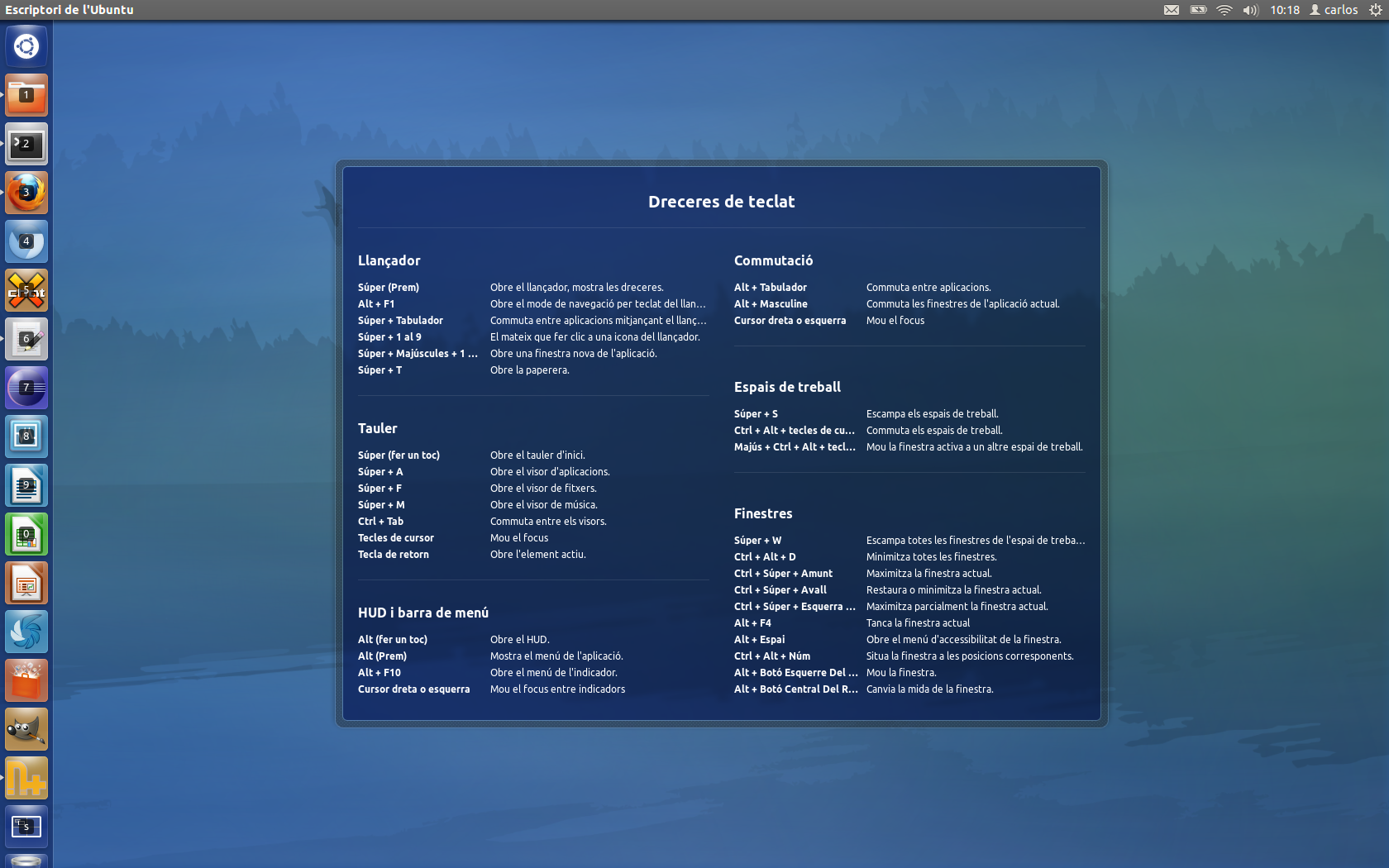
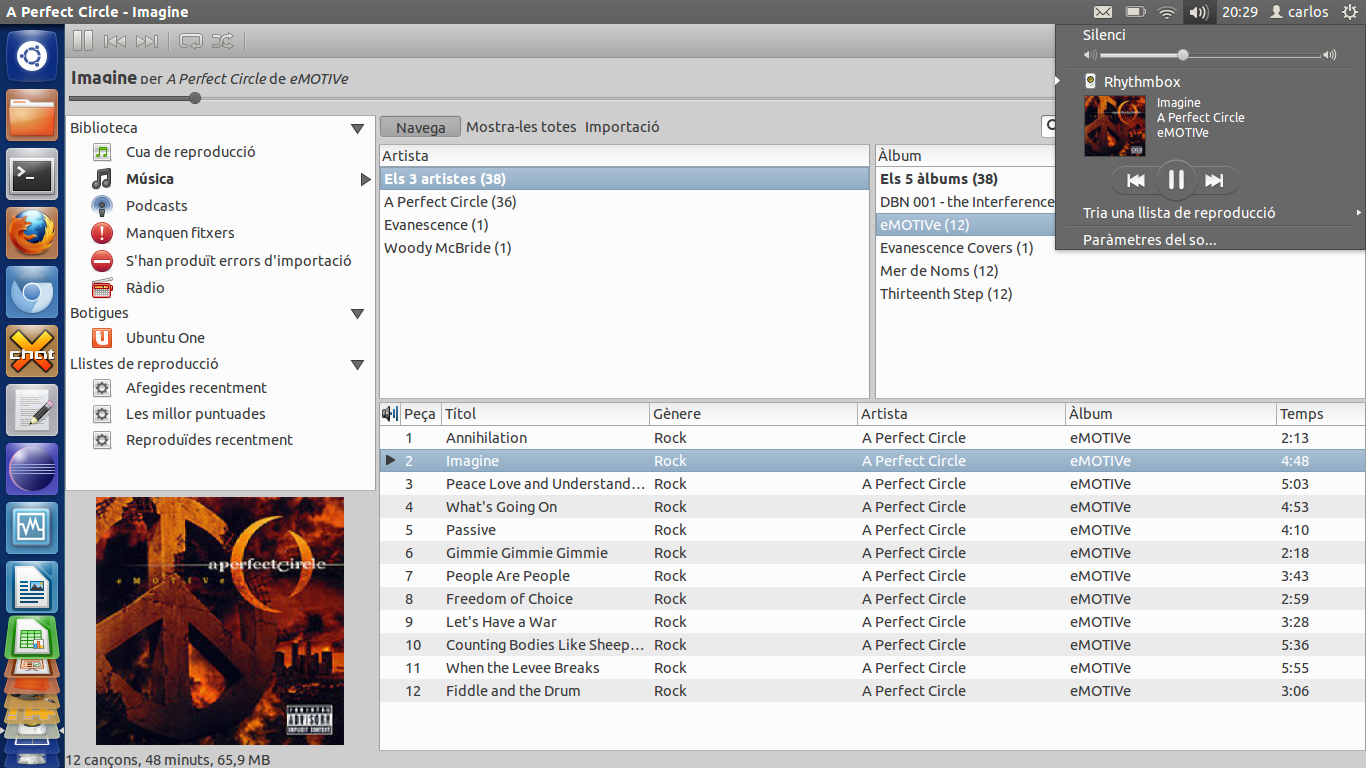
So for this cycle (“Precise Pangolin”) I started working on adding support for Unity in Greybird. Unfortunately there were so many things to do in the artwork-department during this cycle that I could only start a very short while ago, so we’re far past the freezes. So far our testers report that things are working well and if there are no blockers coming up, this will hopefully land in Precise via the -proposed repository.
Try for yourself!
You can try this version of Greybird even before it lands in any repository very easily by downloading the 0.8.1 release and unpacking the theme into ~/.themes (if that directory doesn’t exist, simply create it).
Unfortunately there is currently no built-in way of switching to any other than the short list of themes that Ubuntu ships by default in Unity, so those of you who want to give this a try will have to use something like “GNOME Tweak Tool”, “Ubuntu Tweak” or “My Unity”.
If you find any bugs please file them on launchpad! Thanks in advance and happy testing!
A few screenshots
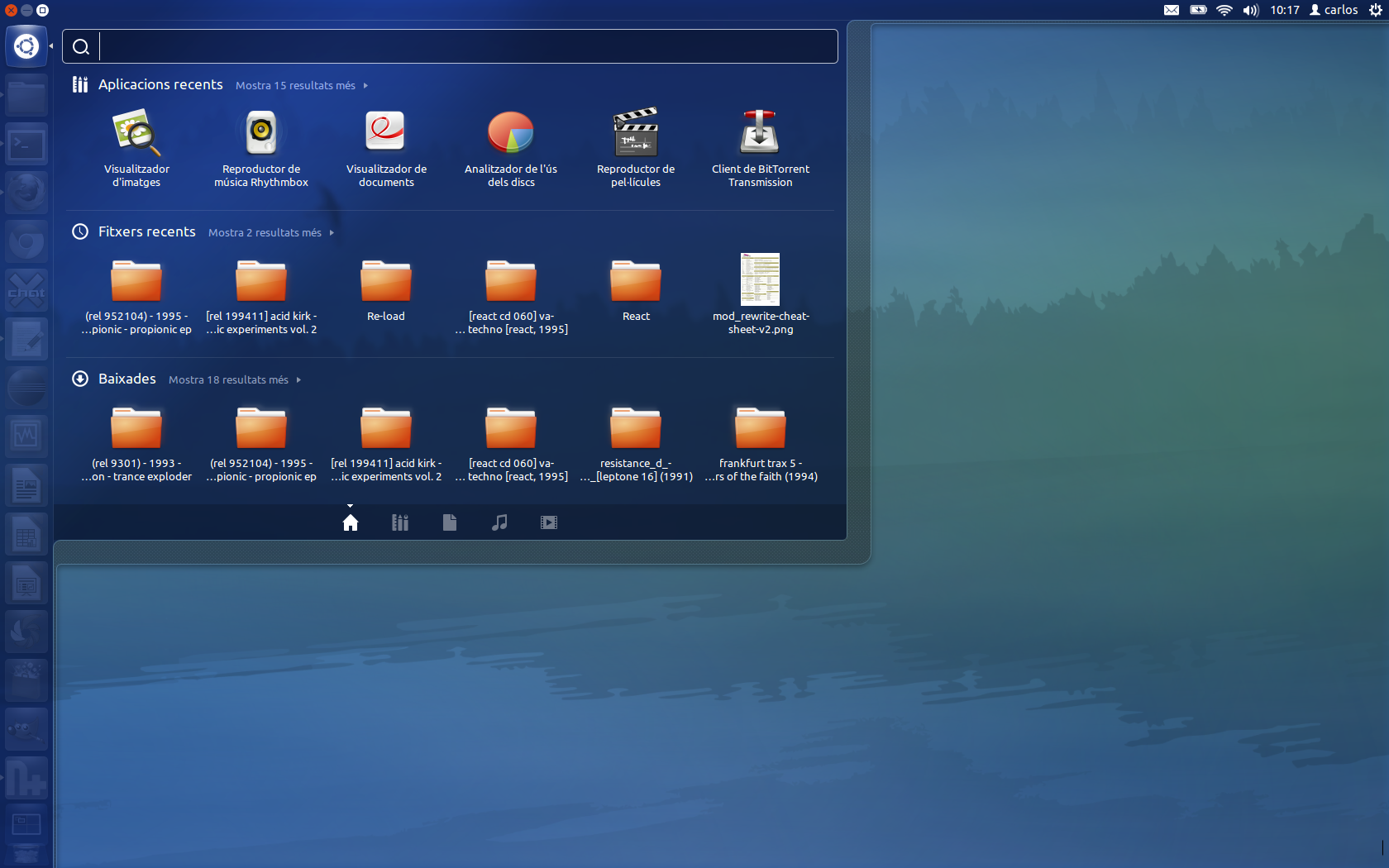
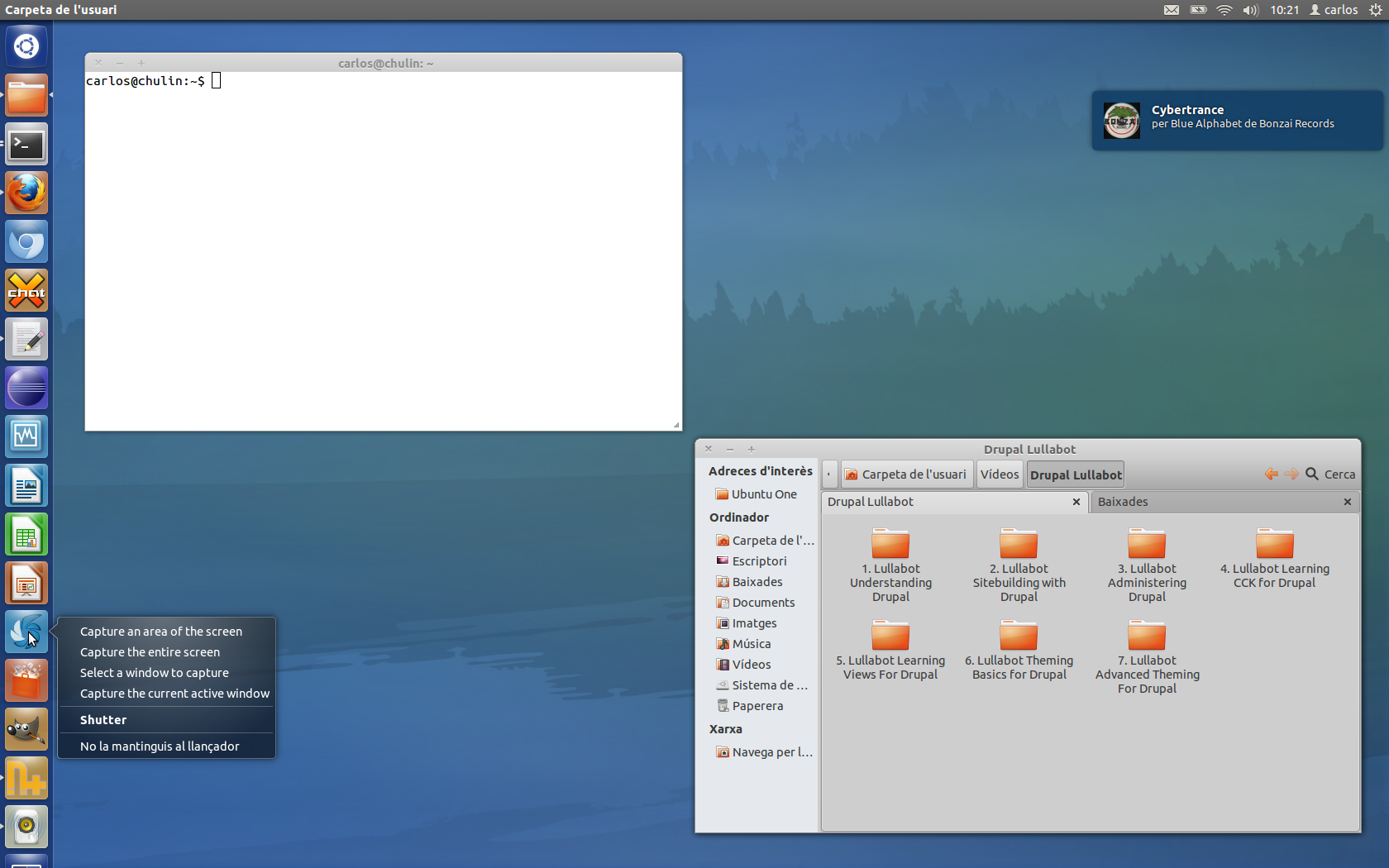
And finally, since everyone loves screenshots, here go a few of Unity with Greybird in action, taken by our tester Carlos.
Greybird in Unity, Dash
Greybird in Unity, Nautilus and gnome-terminal
Greybird in Unity, Keyboard-Shortcuts Overlay
Greybird in Unity, Rhythmbox and the Sound-Menu
The author of this post is Simon Steinbeiß, who is the Xubuntu Artwork Lead. In addition to Xubuntu, he works extensively on the Shimmer Project and the Xfce Design SIG.